Free, downloadable PDF publications |
 |
Made of Steel
Tablet Edition
Newly designed PDF specifically for iPad and Android Tablets From my grandfather I learned to love the polish of long-used tools and the unmistakable aroma of oil and fresh metal filings. I can still smell his shop and hear his voice – thick with his old-world Armenian accent – echo in the tall ceilings. I guess he also taught me to love the stories and manners of old, greasy machine shop men. |
Download options
 and and 
iPad/Android Tablet Edition
(91.7 megabyte PDF)
Originally Published
December 2014 |
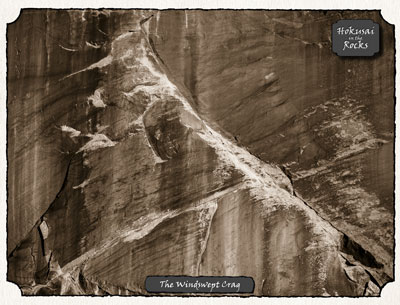 |
Hokusai in the Rocks I found myself wandering the dry and dusty canyons of southern Utah, thinking about Hokusai and his famous print, The Great Wave. There it was, up on the canyon wall, that massive wave captured in ancient stone — or so it seemed to my eidetic vision. The more I stared at those ancient rock walls, the more Hokusai images I found — strange to see when one has entered the canyons to make decidedly American landscape photographs of the Desert Southwest. But, that is the power of Hokusai. |
Download options
and
iPad/Android Monograph
(15.1 megabyte PDF) Originally Published
June 2014 |
<
 |
Light, Glorious Light From the depths of space, the Sun launches its energy pulses from every millimeter of its surface, casting bits and waves of itself in an ever-growing sphere of energy. For some 16 minutes this invisible energy traverses the cold and empty regions of space until it encounters some object that makes that energy manifest — a particle of atmospheric dust, a dusty photographer's warm skin, or the massive, silent face of an ancient, dusty wall of rock — and suddenly there is light. |
Download options

Adobe Reader Monograph
(4.4 megabyte PDF)
and
iPad/Android Monograph
(6.6 megabyte PDF) Originally Published
May 2013
in LensWork Extended #106 |
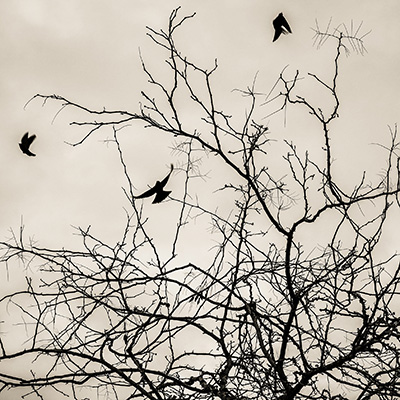 |
Winter Trees 7 The skeletal complexity of winter trees is one of their primary characteristics — one that I could stare at for hours on end. One that I have stared at for hours on end. Tendrils, veins, pathways, neurons, delta patterns, roots. Not one single straight line anywhere. |
Download options
Adobe Reader Monograph
(9.8 megabyte PDF)
and
iPad/Android Monograph
(4.2 megabyte PDF) Originally Published
March 2014 |
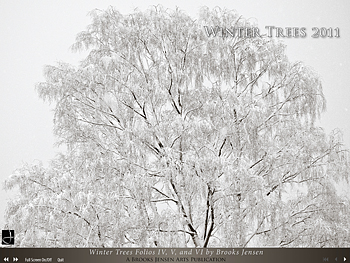 |
Winter Trees 2011 Three new Winter Trees folios are presented in this single PDF. |
Download options
Adobe Reader Monograph
(13.1 megabyte PDF)
and
iPad/Android Monograph
(7.9 megabyte PDF) Originally Published
March 2011 |
 |
Living Landscape The 30 landscape images from exhibition in Xiang Sha Wan, inner-Mongolio China that was held in January 2011 |
Download options
Adobe Reader Monograph
(25.6 megabyte PDF)
and
iPad/Android Monograph
(14,7 megabyte PDF) Originally Published
January 2011 |
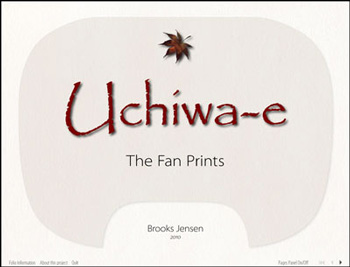 |
Uchiwa-e
(The Fan Prints) This PDF includes all 60 images from the Uchiwa-e fan print folios. |
Download options
Adobe Reader Monograph
(12.5 megabyte PDF)
and
iPad/Android Monograph
(38.8 megabyte PDF) Originally Published
February 2010 |
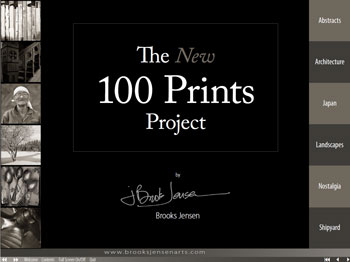 |
The New 100 Prints Project
100 images with commentary |
Download options
Adobe Reader Monograph
(56.3 megabyte PDF)
|
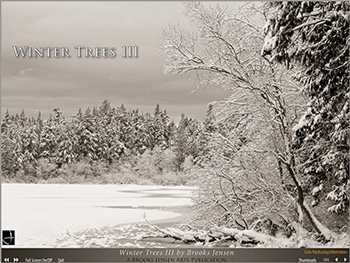 |
Winter Trees III The third of the Winter Trees annual project. |
Download options
Adobe Reader Monograph
(5.6 megabyte PDF)
and
iPad/Android Monograph
(3.9 megabyte PDF) Originally Published
March 2009 |
 |
Tangerine Gifts Travels in rural Japan. Co-authored with David Grant Best |
Download options
Adobe Reader Monograph
(11.6 megabyte PDF)
and
iPad/Android Monograph
(5.3 megabyte PDF) Originally Published
March 2009 |
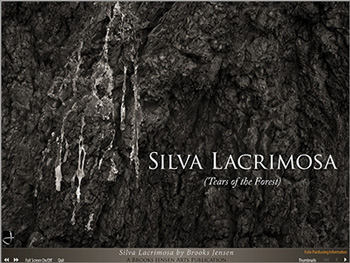 |
Silva Lacrimosa Tears of the Forest. From the 30-Mile Burn in the Okanogan forest of Eastern Washington. |
Download options
Adobe Reader Monograph
(7.5 megabyte PDF)
and
iPad/Android Monograph
(4.8 megabyte PDF) Originally Published
March 2009 |
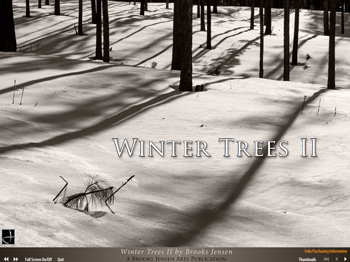 |
Winter Trees II The second of the Winter Trees annual project. |
Download options
Adobe Reader Monograph
(6.1 megabyte PDF)
and
iPad/Android Monograph
(2.7 megabyte PDF) Originally Published
April 2008 |
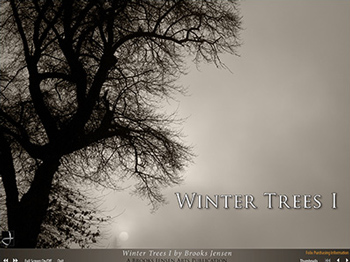 |
Winter Trees I The first of the Winter Trees annual project. |
Download options
Adobe Reader Monograph
(6.4 megabyte PDF)
and
iPad/Android Monograph
(2.7 megabyte PDF) Originally Published
April 2008 |
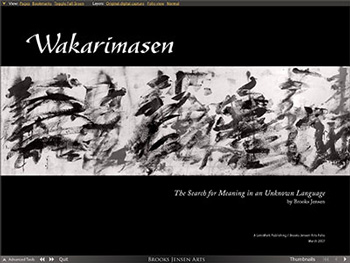 |
Wakarimasen
(I Don't Know)
Callligraphy-like abstracts. The Adobe Reader Monograph PDF employes an advanced feature of PDF creation that allows layers which show the original digital capture and the finished folio page. |
Download options
Adobe Reader Monograph
(12.1 megabyte PDF)
and
iPad/Android Monograph
(11.2 megabyte PDF) Originally Published
March 2007 |
 |
October Seas Oregon coastal landscapes. Photographed during a single weekend as an experiment in quick project production. |
Download options
Adobe Reader Monograph
(9.4 megabyte PDF)
and
iPad/Android Monograph
(4.0 megabyte PDF) Originally Published
March 2009 |
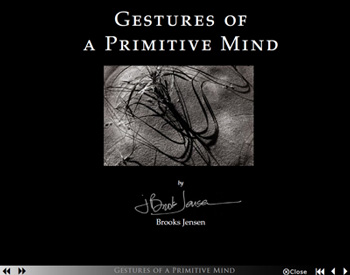 |
Gestures
of
a Primitive Mind Coastal eel-grass in winter light. |
Download options
Adobe Reader Monograph
(6.4 megabyte PDF)
Originally Published
July 2005 |
Windows users may download an entire PDF by using a right-click and then choosing "Save as . . ." Mac users with a two-button mouse may do the same thing.
Mac users with a one-button mouse may download an entire PDF by using click-and-hold and then choosing to save the file to your harddrive.
I recommend creating a folder on your harddrive that is your "Library of PDFs," or "PDF Bookshelf" or some such designation. Download content to this folder for storage. Launch the PDF publications from this folder on your harddrive.
If the pages aren't opening or displaying as blank white pages, you are probably viewing the files with Preview on your Mac instead of with Adobe Reader OR you are using Adobe Reader 6 or less to open the files. Be sure you have Adobe Reader 7 or greater downloaded on your computer. You must make Adobe Reader 7 or greater your default PDF reader:
1. Select the PDF file you have downloaded.
2. Select "Get Info" from the File menu (or hit Cmd-I)
3. Set "Open With" to Adobe Reader 7 or greater.
4. Click the "Change All" button to make this the default for all PDFs
